This information is relevant to superusers, unit heads and assessment managers.
When you review a completed assessment, you may find problems that you want to track on the risk register. Use the “Publish to Risk Register” feature to quickly create a new risk register entry based on a question on an assessment.
Only users that have the ability to create new risk register entries can use this feature. You will only be able to do it from reports that you have access to as well.
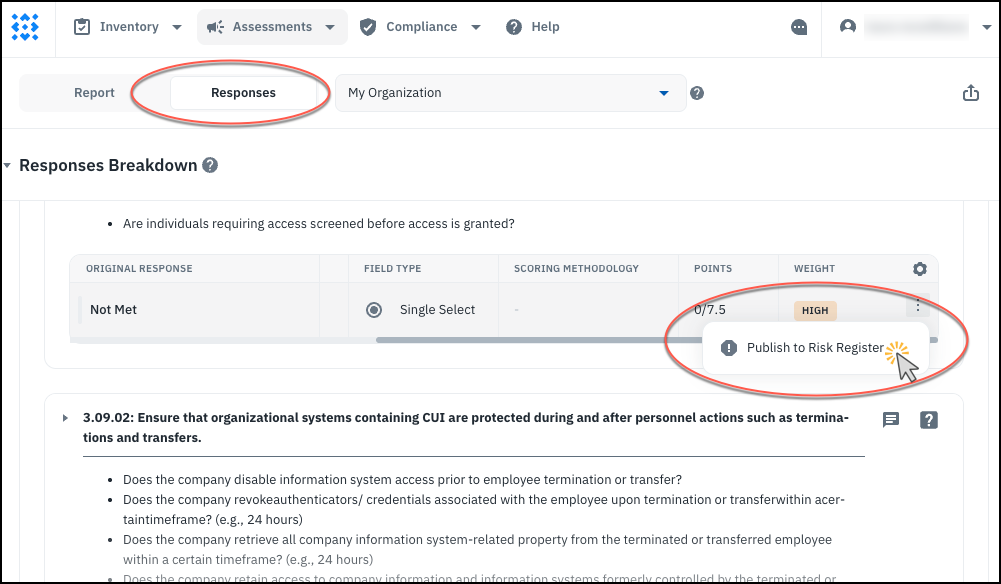
- From the Responses tab of a completed report (or a preview report that is awaiting final acknowledgment), expand categories and questions until you locate a question that generated an unsatisfactory response. From the three-dots menu, click Publish to Risk Register.
-
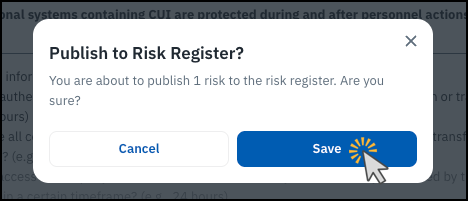
On the confirmation dialog, click Save.
-
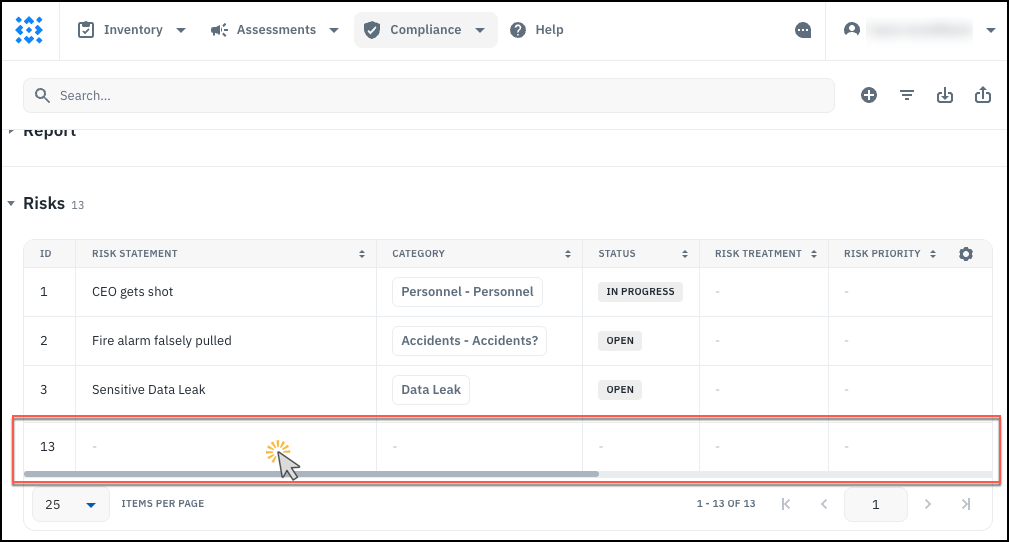
The newly created risk will show up at the bottom of the Risk Register. The risk is assigned to the Unit that the assessment was related to (for a unit assessment, the unit being assessed; for an application assessment, the unit that owns the application; for third-party vendor assessment, the unit that owns the assessment).
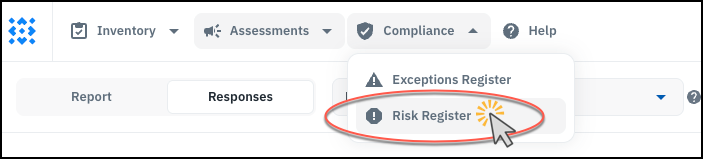
To view the new risk, navigate to the Risk Register.
-
Locate the most recently created entry (by default it shows up at the bottom). The fields all show as blank in the table. Click to edit it.
-
The question text will show in the description of the risk. You should edit the other fields, including the name. When you start to type in a name, it pops up saying “Create risk statement.” Click on this.
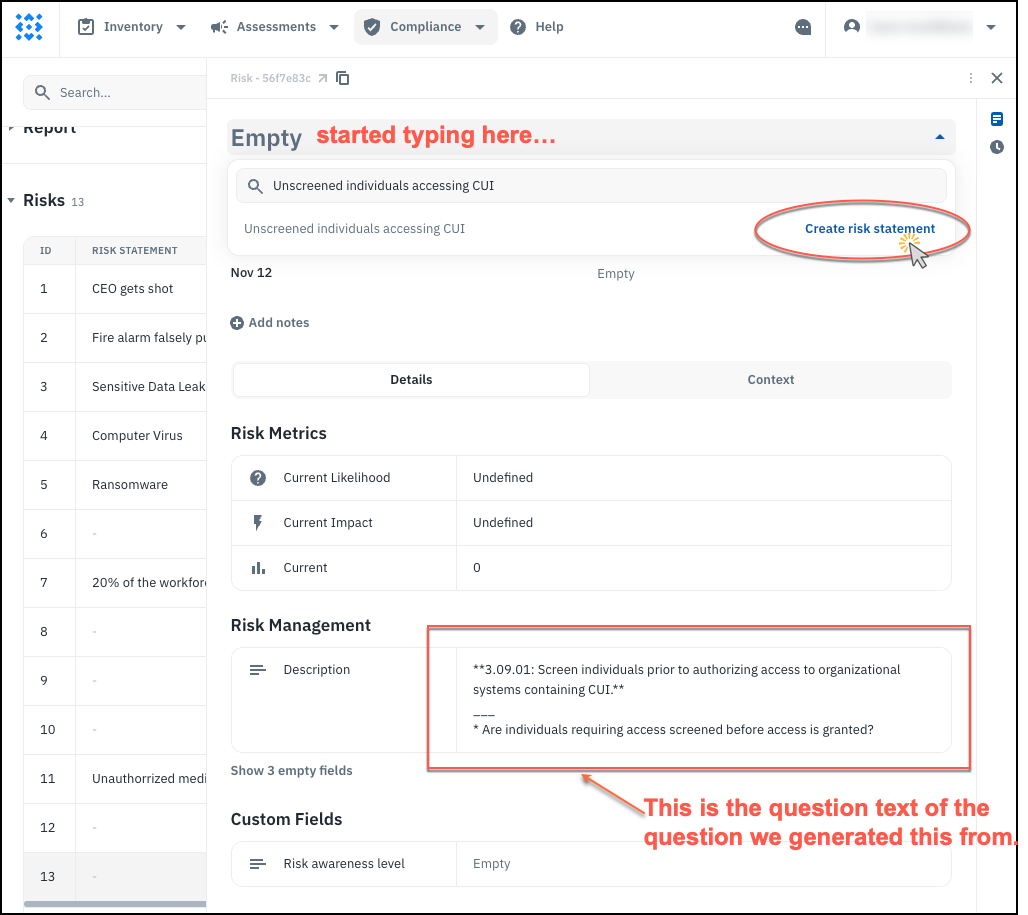
-
You will have to type the new name again in the dialog, and choose a risk category. If you leave the description field blank, it will retain the existing description (which is the question text). Click Confirm.
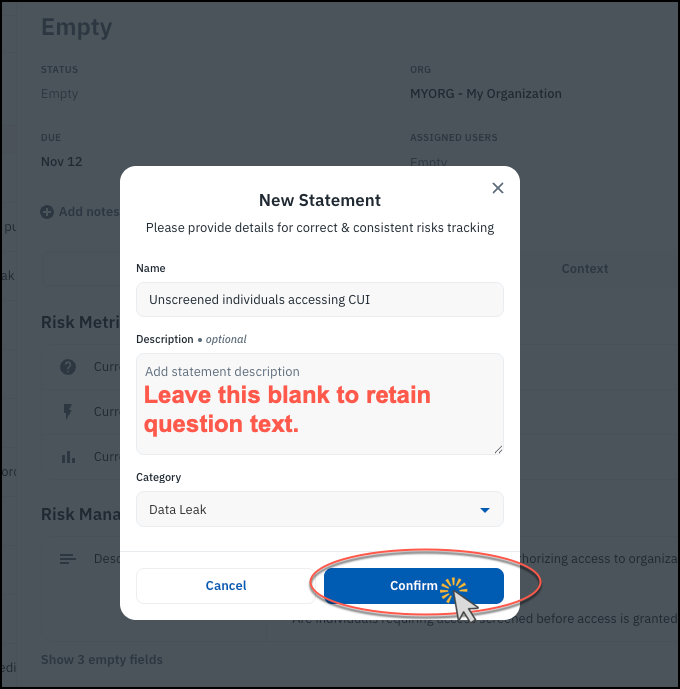
- You should update other fields as needed.
You can only create one risk entry from each question in a given survey.