This information is for superusers only.
Why cancel an assessment or survey?
After an assessment is active, you might realize that a mistake was made. Perhaps you accidentally included an extra unit in a unit assessment. Or you created a third-party product assessment in the wrong series. There may be situations where you want to get rid of that assessment or one survey in a larger assessment, but you don’t want to delete it entirely. You may want to see the defunct assessment in Isora GRC so that it reminds you not to do it again, for example.
Which assessments or surveys can be cancelled?
Any type of assessment can be canceled, as long as it is in an ACTIVE, ACKNOWLEDGE or COMPLETE state. You can’t cancel an assessment that hasn’t ever been in an active state. Additionally, you can cancel individual surveys of unit assessments, as long as the survey has been active at some point. You can’t cancel an assessment or survey that’s currently in a DRAFT, PUBLISHED or CANCELLED state.
What if I change my mind or I canceled it by mistake?
You can restore a cancelled assessment or survey. It will return to its previous state.
What if I want to get rid of the assessment or survey altogether?
In that case, rather than canceling the assessment or survey, you should delete it. Once deleted, the item will disappear from Isora GRC’s interface and there is no way to recover it. You can delete an assessment or survey no matter what state it currently is in.
How-To: Cancel an Assessment
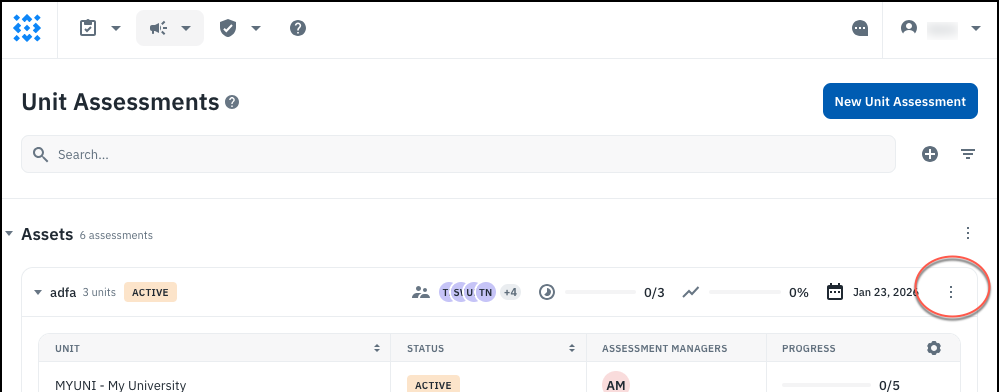
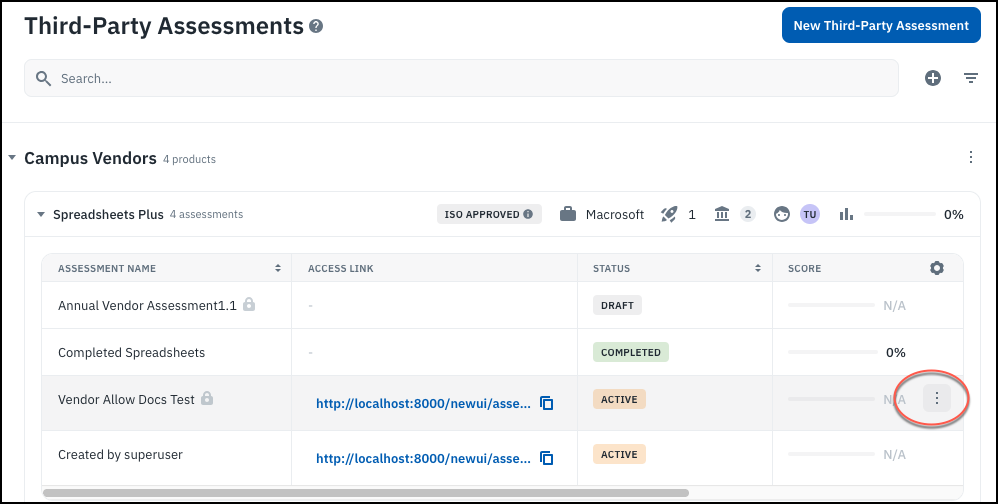
- As a superuser, locate the assessment that you want to cancel. The same method applies for any methodology used. Click on the three-dots menu for the assessment.
-
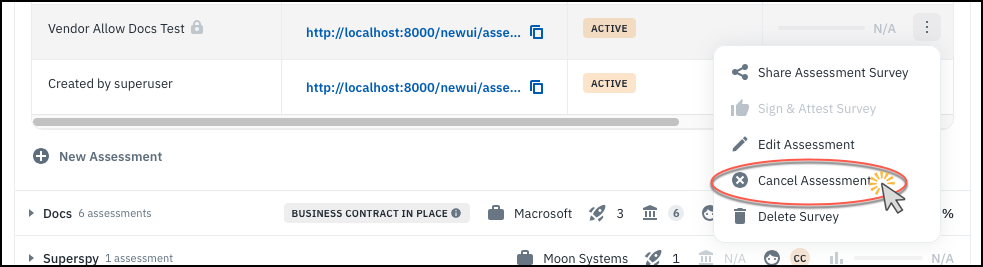
Click on “Cancel Assessment.”
-
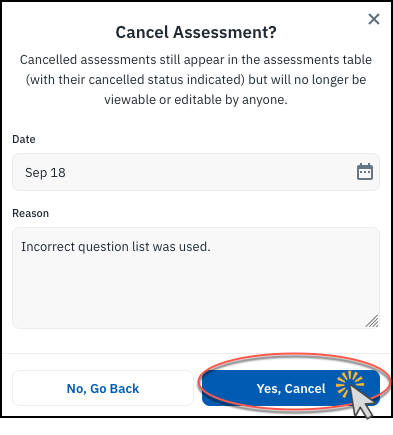
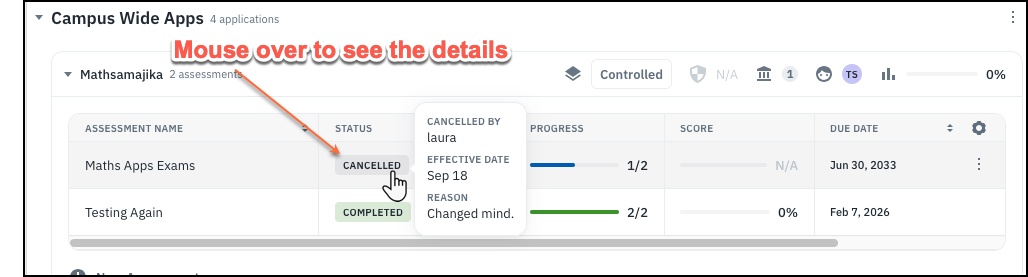
Choose an effective date and enter a reason for the cancellation. This information will show up later when you mouse over the cancelled assessment in the interface. Then click “Yes, Cancel.”
- The assessment will show up in the CANCELLED state.
How-To: Cancel a Survey in a Unit Assessment
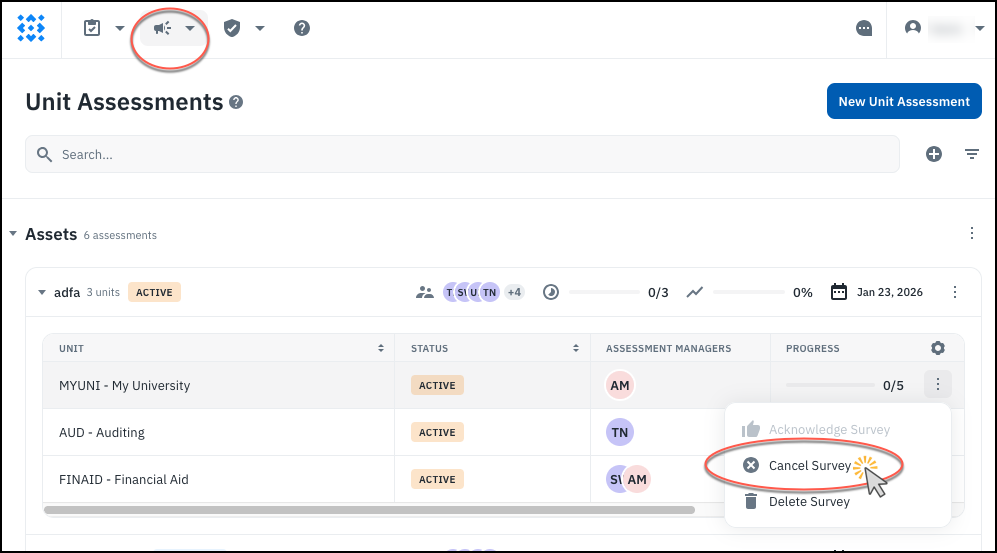
- As a superuser, locate the assessment with the extraneous survey. Click on the three-dots menu next to the survey you want to cancel, and click on “Cancel Survey.”
-
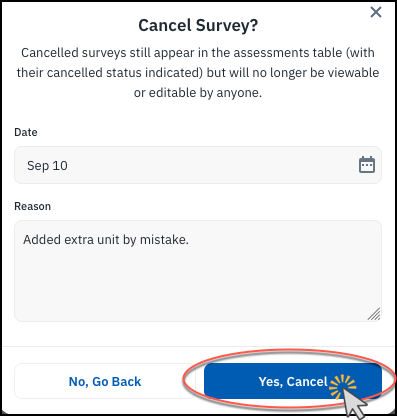
Choose an effective date and enter a reason for the cancellation, then click “Yes, Cancel.”
-
The survey is now cancelled, but the rest of the assessment is unaffected.
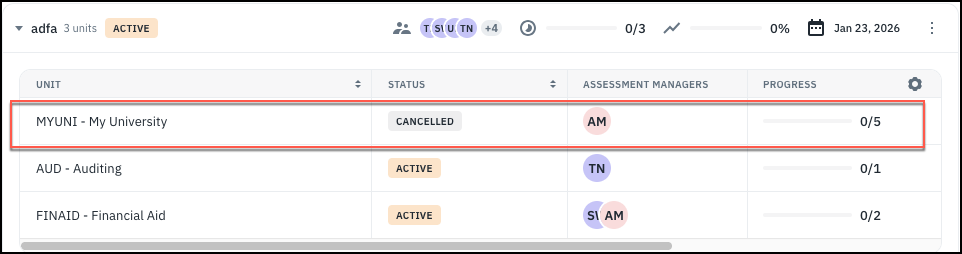
How-To: Restore a Cancelled Survey or Assessment
- As a superuser, locate the assessment or survey that you want to restore. From the three-dots menu, choose the Restore option.
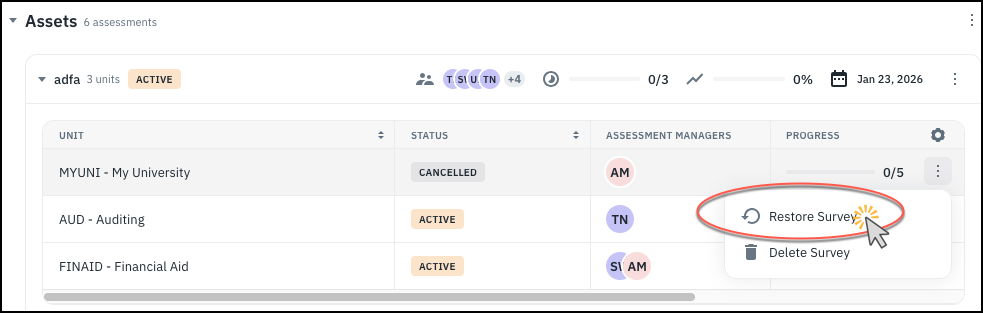
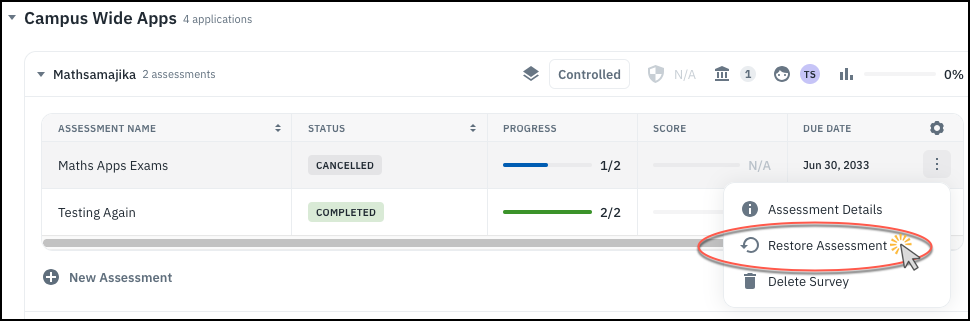
-
On the confirmation dialog, click “Yes, Restore.”
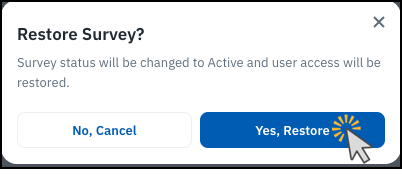
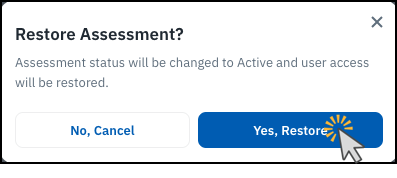
- The assessment or survey will return to its previous state. If you restore a unit assessment with multiple surveys, all of the included surveys will become active again, even if they had previously been individually canceled. If you had canceled a complete assessment or survey and then restore it, it will return to complete status.
How-To: Delete a Survey or Assessment
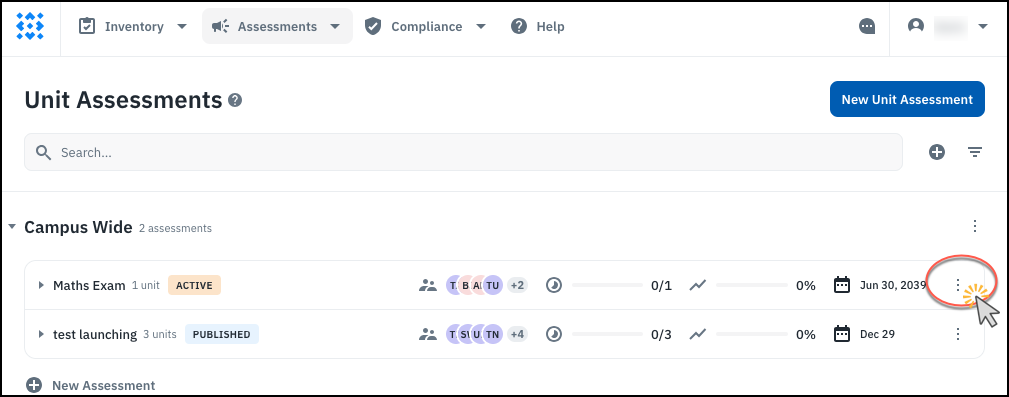
- As a superuser, locate the assessment or survey you want to delete and click on the three-dots menu.
-
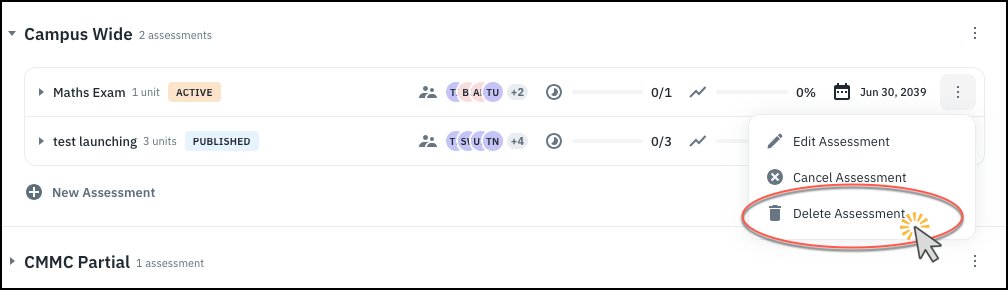
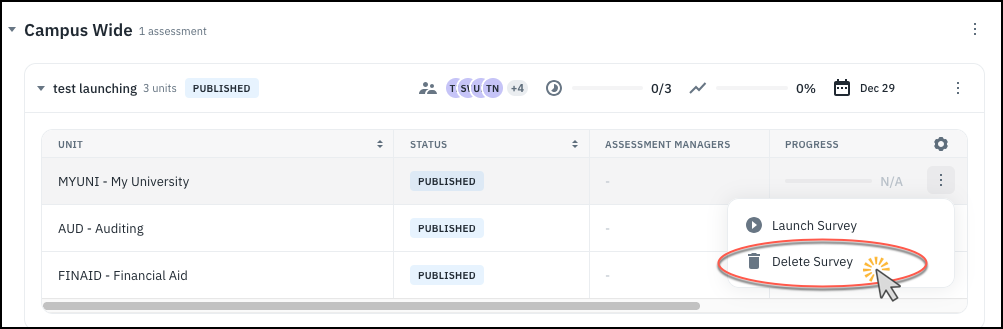
Choose the delete option.
-
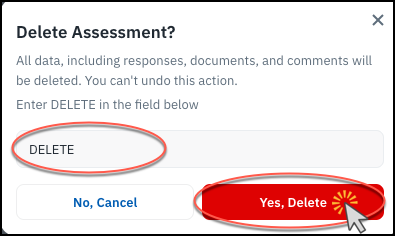
In the confirmation window, type “DELETE” and click the button to confirm deletion.