You must be a superuser, Assessment Manager or IT Staff of the unit that owns the application, or the application owner, to create an application deployment. Additionally, you must have access to the asset where you want to deploy it.
If you are only the application owner, and have no other roles in a unit, then you must be an asset group owner in order to have access to an asset for deployment.
Application Deployments are totally different from Third-Party Product Deployments. It is possible to have an application that is linked to a third-party product and they can both have separate deployments. Application deployments track different things than third-party product deployments do. Your organization could use either or both type of deployment.
How to deploy from an application to an asset
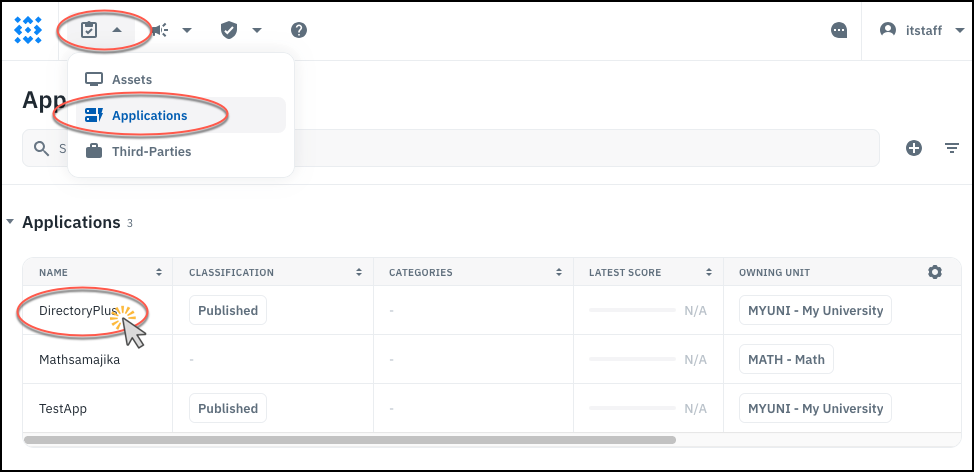
- Navigate to the application in the Applications Inventory and click its name.
-
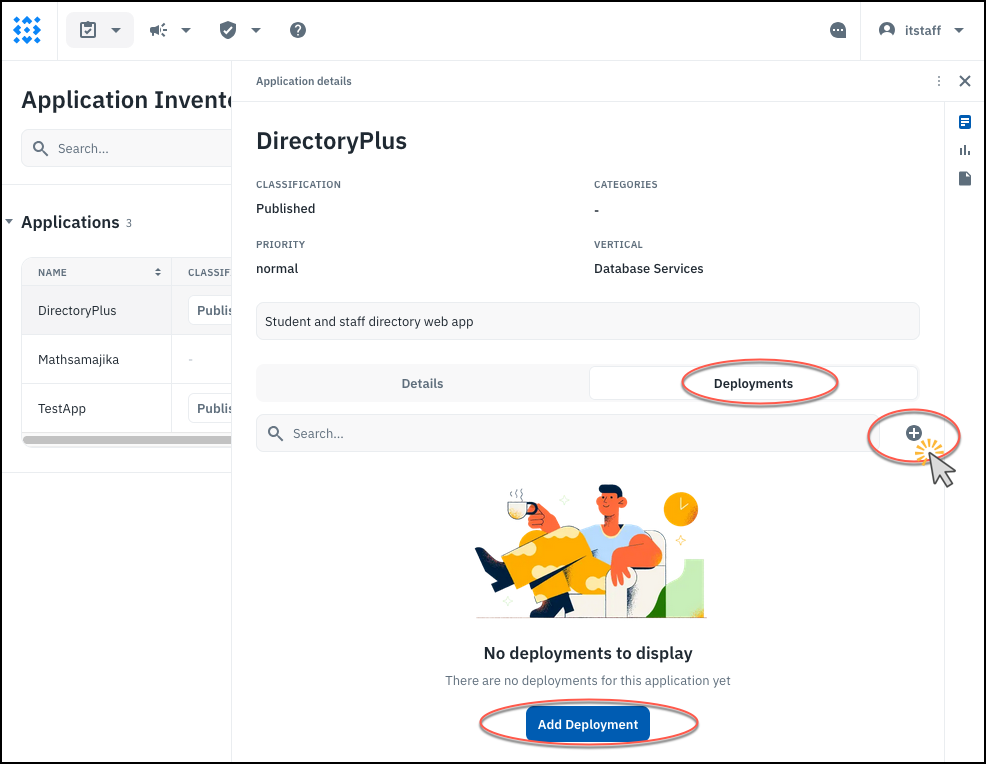
On the Application Details panel that opens up, go to the Deployments area and click the + sign to add a new deployment. (Or, click the Add Deployment bottom which shows if there are no deployments yet.)
-
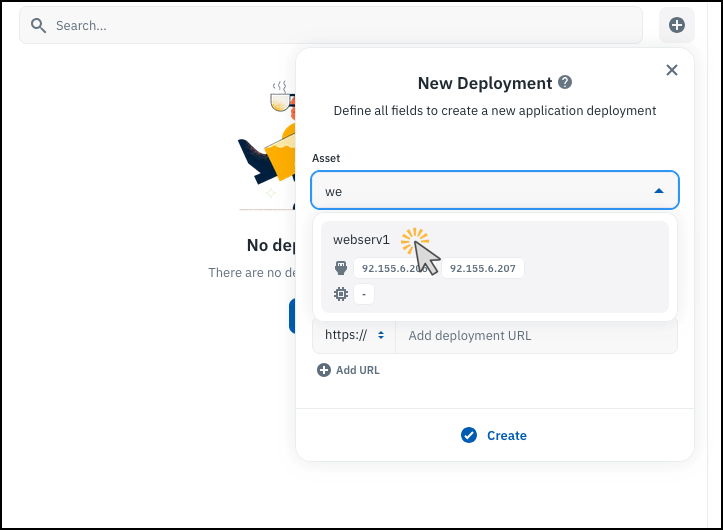
In the New Deployment dialog, you can search for an asset where you want to deploy by typing its name, IP address, or MAC address.
-
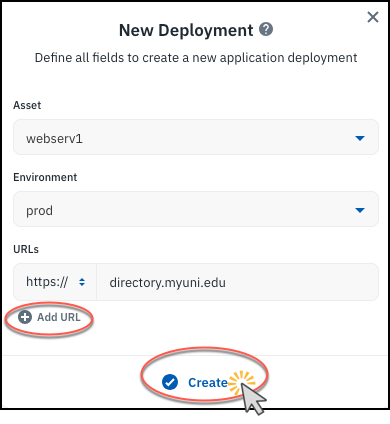
Fill in the fields as desired (you can add additional URLs if needed) and click Create.
How to create an application deployment from the asset
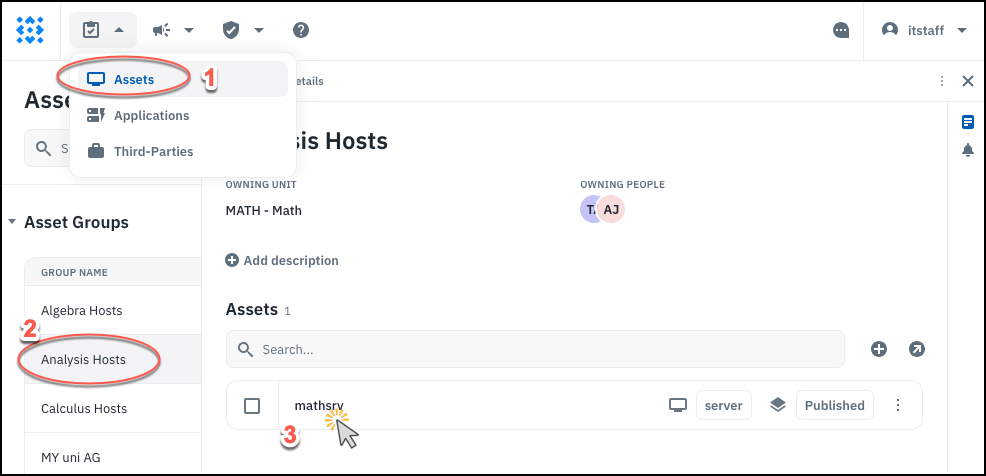
- Navigate to the asset group where the asset resides and click it to open the side panel. Locate the asset and click its name in the list.
-
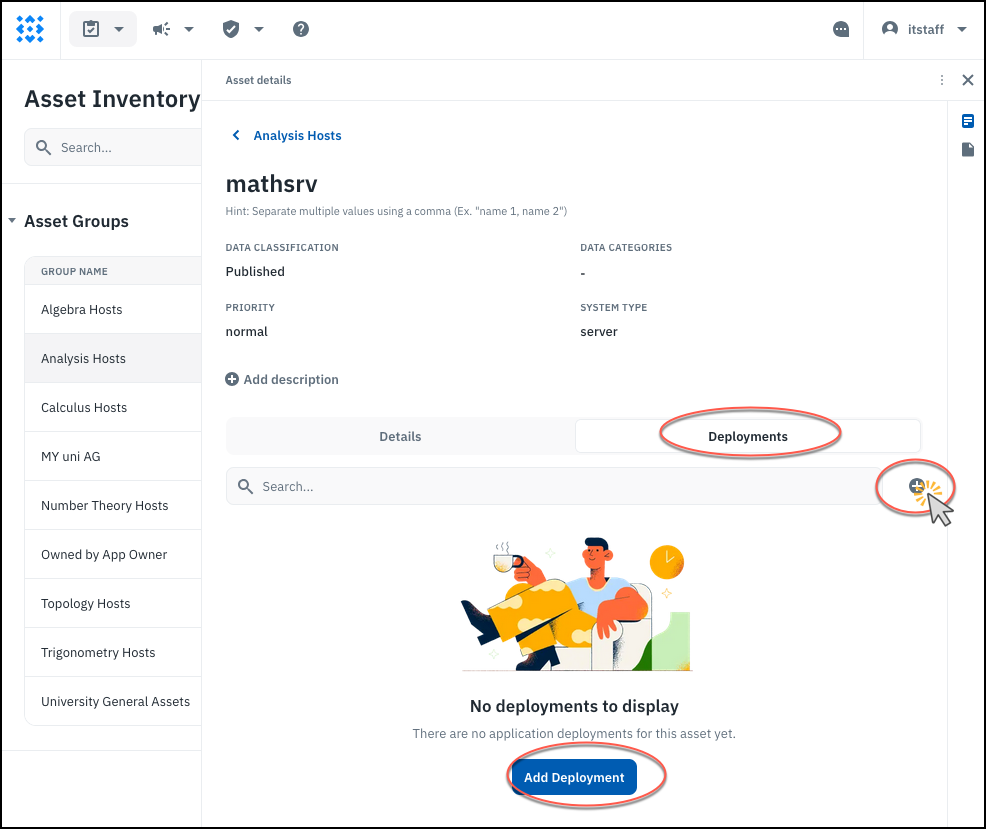
Go to the deployments area and click the + sign (or click the Add Deployment button if it’s available).
-
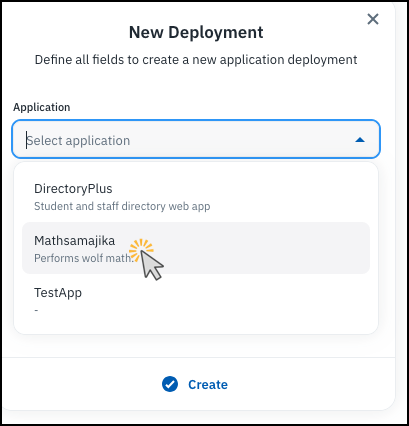
Select the application from the list (or search based on its name).
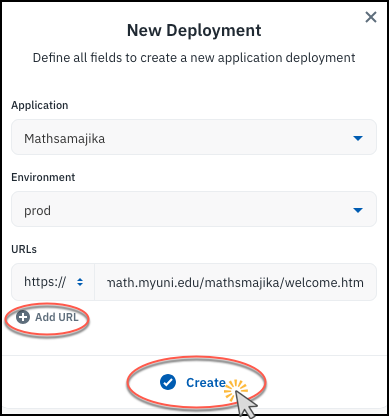
- Fill in the rest of the fields (add more URLs if needed) and click Create.
Note: You can have multiple deployments of the same application onto different assets. You can also have different applications deployed onto the same asset.