This information is for users who have a vendor requester, IT staff or assessment manager role, or superusers.
Instructions Using the Old UI
- Go to the Products tab of the Inventory page and click the New Product button.

- Fill in the fields and click Save.

You can also add a new product into inventory by creating an assessment for it.
Instructions Using the New UI
- On the Inventory page, Third-Parties view, if you need to create a new vendor, use the + button up at the top next to the search bar.

- Fill in the fields to create the vendor (if necessary).

- If you created a new vendor, it pops you into a page where you can then create a new product underneath that vendor.

- If you want to create a product underneath an existing vendor, use the + button on the right-hand side next to the vendor name.

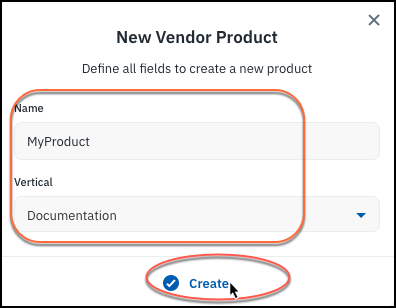
- Fill in the fields to create the product.
See also: Reference: Roles and Capabilities